CONTROL SOFTWARE
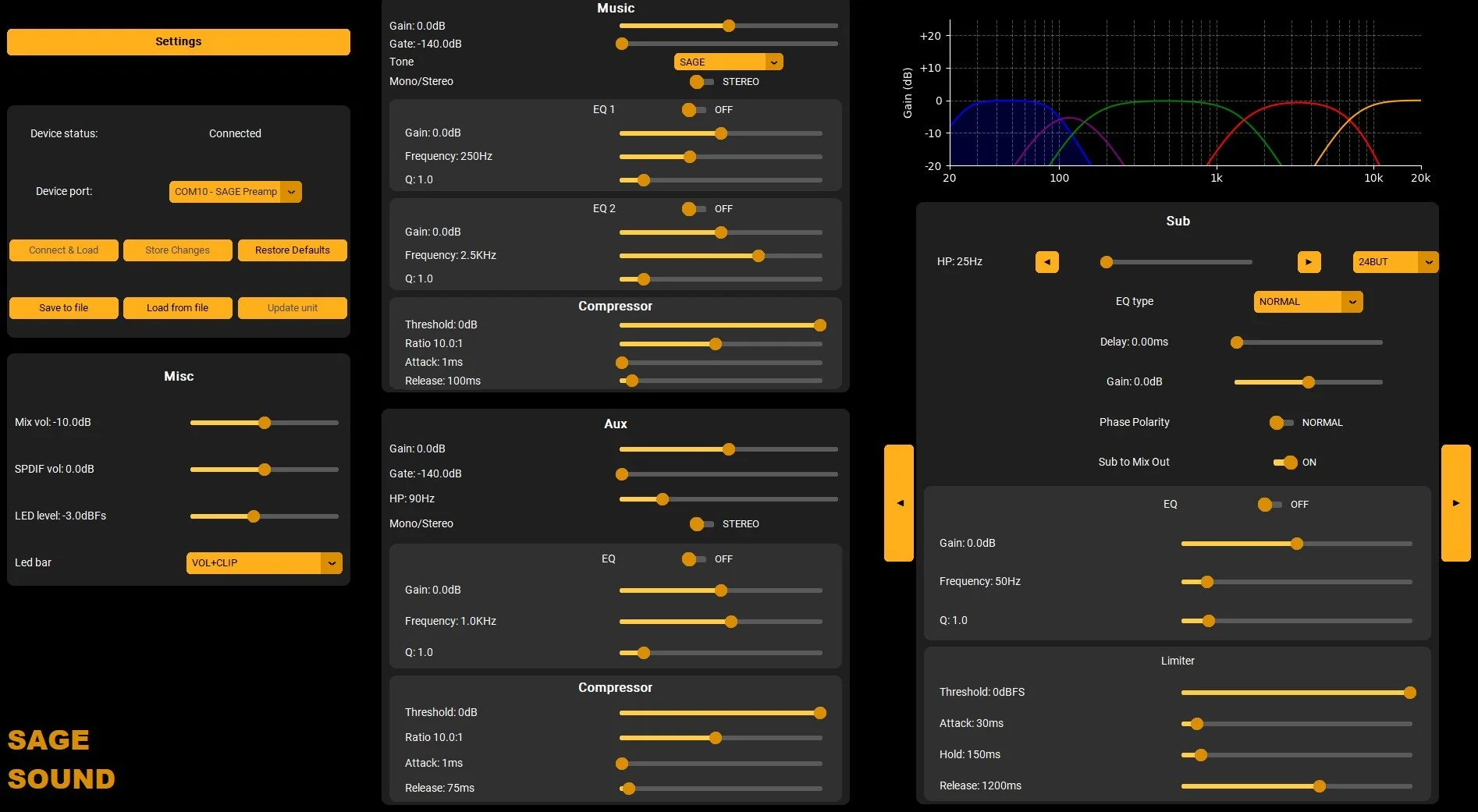
The Sage Control software allows you to configure compatible Sage Sound products from you computer via USB.
To download the software, click the appropriate button below for your operating system.
Instructions are below the download links.
This is a beta release which means some features have not been implemented yet and there may be bugs. Please report bugs you encounter and give any feedback via email.
V3.9 Adds support for Bass Thing Mk2 and minor graphical changes. Mac version now has shorter boot time and an extra version for Intel based macs has been added to improve compatibility with older Mac models (macOS 14.0 Sonoma or newer required).
INSTRUCTIONS.
-Click the button above to download the program. On Windows you will need to click the ‘more info’ text when the windows message appears and then “Run anyway”. On Mac (after trying to open) you’ll need to go: Mac System Settings → Privacy & Security → scroll down → “sage was blocked…” → Open Anyway
-5u preamps on V.1 of the firmware will need updating, version is shown on LCD screen when starting up. Connect the USB cable. Click the “Update unit” button and follow the steps, this will take a few minutes so just wait until it tells you it has been completed, don’t unplug the cable until it has completed. After the update has completed, it’s recommended to turn the preamp off, wait a few seconds and turn it back on again, as the preamp re-boots it will show the firmware version on the LCD screen, make sure it says “Ver 2.0”.
-With the V2 firmware installed you can click the “Select port” button and select the ‘SAGE preamp’ option. Next click the “Connect & Load” button, this will connect the software to the preamp and will load the saved settings, when you see all the settings change it is ready for use.
-To change a value you can adjust the slider or click on the value and write the specific value you want.
-When you are done adjusting you will need to save the new values to the preamp, pressing the “Store Changes” button will do that. You could also disconnect the software and save using the LCD and buttons in the normal way.
-If you ever want to restore every value to it’s default setting, you can press the “Restore Defaults” button. This restore won’t be saved unless you then do a save with the “Store Changes” button.
-The “Save to file” button allows you to store different preamp configurations on your computer (and share this config with others). By pressing the “Load from file” button you can recall the settings from the file you created.
-There is a settings menu, click the “Settings” button to access it. Here you can change the language, set dark/light theme, adjust the sizing and enable the tooltips. By enabling the tooltips, when you hover the mouse over a setting it gives you a description of that function. (The “Show all serial ports” is used for debugging purposes and can be left hidden).
Features not yet in the software that are planned:
-Gain reduction indicators for the limiters.